
When you request service, order supplies, or ask about billing for a copier or printer, MCC may ask for the equipment serial number or equipment ID.
This information helps us identify the exact device, account, location, model, service agreement, and supply items connected to your request. If your company has more than one copier or printer, the serial number keeps everyone from playing the world’s least fun guessing game.
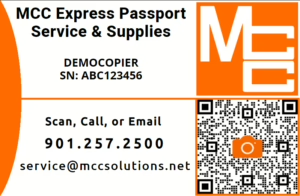
The Fastest Option: Use the MCC Express Passport
If your device has an MCC Express Passport, scan the QR code on the Passport label or card.
The Express Passport is tied to that specific piece of equipment, so the account, model, and serial number information are already connected to the request form.
Use the Express Passport when you need to:
- Request service
- Order supplies
- Report meter readings
- Contact MCC about that device
If your device does not have an Express Passport, you can find the serial number using one of the methods below.
Check the MCC Equipment Label
All devices should have an MCC label, asset tag, or equipment ID sticker. This should be located:
- On the front of the machine
If you see an MCC equipment ID or asset number, include it with your request. If you also see the manufacturer serial number, include both.
Check the Manufacturer Label
Most copiers and printers have a manufacturer label or metal plate with the serial number.
Common places to look include:
- Back of the machine
- Side of the machine
- Inside the front cover
- Inside a toner or ink access door
- Near the paper trays
- Near the rear access panel
- On the bottom or underside of smaller desktop printers
The label may say Serial Number, S/N, Machine Serial Number, or Device Serial Number.
Toshiba e-STUDIO Copiers
On Toshiba e-STUDIO copiers, the serial number is usually found on a manufacturer label attached to the machine.
- You may also be able to find device details from the copier’s control panel under menus such as User Functions, Counter, Device Information, or Machine Information, depending on the model.
Epson WorkForce Printers
On Epson WorkForce printers, the serial number is usually printed on a label attached to the printer.
- Some Epson models also allow you to print a status sheet from the printer menu. Look for menu options such as Settings, Printer Status, Network Status, or Print Status Sheet.
Kyocera Copiers and Printers
On Kyocera devices, the serial number is commonly found on the machine label or on a printed status page.
- From the control panel, look for menus such as System Menu, Counter, Device Information, Report, or Status Page. The exact wording may vary by model.
Lexmark Printers and Multifunction Devices
On Lexmark devices, the serial number may be found on the physical label or through the printer’s menu.
- From the control panel, look for menus such as Settings, Reports, Device Information, About This Printer, or Menu Settings Page.
Xerox Copiers and Printers
On Xerox devices, the serial number may appear on the machine label, control panel, or configuration report.
- On many Xerox AltaLink or VersaLink models, you may be able to find the serial number from the control panel by opening Device, About, or Information. The wording may vary by model.
Print a Configuration or Status Page
If you cannot find the label, many devices can print a configuration, status, or device information page that includes the serial number.
Look for menu options such as:
- Reports
- Status Page
- Configuration Report
- Device Information
- Machine Information
- Menu Settings Page
- Printer Status
The report may include the model number, serial number, IP address, network information, page counts, and installed options.
What If You Cannot Find the Serial Number?
If you cannot locate the serial number or equipment ID, contact MCC and provide as much information as possible.
Helpful details include:
- Business name
- Contact name
- Phone number
- Equipment location
- Brand and model
- Description of the device
- Photos of the machine and any labels
- Department or room where the device is located
- Any error message or issue you are reporting
If there are multiple similar devices at your location, a photo can help MCC identify the correct machine.
Before You Submit a Service or Supply Request
Before contacting MCC, double-check that the serial number belongs to the correct device.
This is especially important if:
- Your office has multiple copiers or printers
- Several devices are the same model
- The device was recently moved
- You are ordering toner or supplies
- You are reporting meter readings
- The issue is tied to a specific location or department
Using the correct serial number helps MCC route the request correctly and avoid delays.