
How Can We Help?
-
Billing
- What Are Copier Meter Readings and Why Are They Important?
- How to Request a Copy of an Invoice or W-9, etc.
- What Information to Include with a Billing Question
- Why Your Invoice Amount Changed
- How to Update Your Billing Contact
- How to Update Your Billing Address
- Where to Send Payments
- Why Lease Billing and MCC Service Billing May Be Separate
- How to Apply Tax-Exempt Status
- How to Read and Report Your Copier Meter
-
Service
-
- How to Add Postage to Your Meter
- How to Update the Postage Rate on a Quadient iX Postage Meter
- What to Do If Your Postage Meter Won’t Connect
- What Happens When USPS Postal Rates Change?
- How to Prevent Mail Feeding Problems
- Why Envelopes Are Not Sealing Properly
- How to Clean or Maintain a Mailing Machine
- How to Replace Ink in a Postage Meter
-
- How to Set Up or Reset Voicemail
- How to Use the Webex App for Calls
- How to Add or Remove Users from Your Webex Phone System
- What to Do If Your Desk Phone Is Not Working
- How to Change Your Voicemail Greeting
- How to Forward Calls from Your Desk Phone
- How to Transfer a Call
- How to Place a Caller on Hold or Park a Call
-
- What Are Copier Meter Readings and Why Are They Important?
- Why Scan to Email Stopped Working
- What to Do When Your Printer Shows Offline
- How to Read and Report Your Copier Meter
- How to Order Toner or Supplies
- What to Check Before Placing a Copier Service Call
- How to Find Your Copier Serial Number or Equipment ID
- How to Clear a Paper Jam Safely
- Why Your Copier Says It’s Out of Paper When the Tray Is Full
- How to Fix Common Print Quality Problems
- Scan to Email Stopped Working
- How to Request Service from MCC
- What Information to Include in a Service Request
- How to Use the MCC Express Passport
- What is the Express Passport?
- How to Order Toner or Supplies
- How the MCC Service Process Works
- When to Request Service vs Contact Your Sales Rep
- How to Check the Status of a Service Request
- How Remote Support Works
- What to Do Before Moving MCC Equipment
-
-
Solutions
-
-
-
-
-
- Articles coming soon
-
- Articles coming soon
-
- Articles coming soon
-
- Articles coming soon
-
-
-
- Articles coming soon
-
- Articles coming soon
-
- Articles coming soon
-
- Articles coming soon
-
- Articles coming soon
-
- Articles coming soon
-
-
- Articles coming soon
-
- Articles coming soon
-
-
-
- Articles coming soon
-
- Articles coming soon
-
- Articles coming soon
-
Print
Updated
Page Properties
In Page Properties, you can adjust the properties of the currently selected page. Options may change based on selections made.
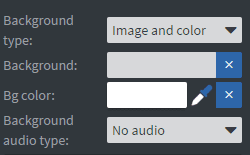
Background Type
- Image and Color: Set a media file as a background or a color.
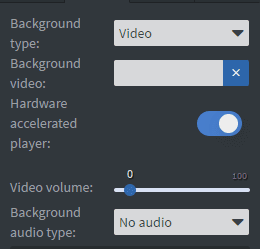
- Video: Set a video file as the background and adjust the hardware acceleration and volume.
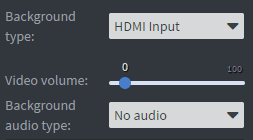
- HDMI Input: Display an HDMI stream as your background and set the volume.
- Background Audio Type: Set the repeating or one time audio option or set to No Audio when no background audio will be played.
Dynamic Pages:
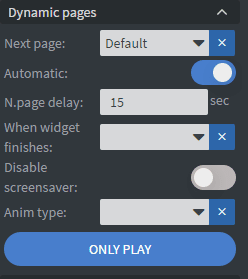
- Next Page: Define which page should be played next.
- Automatic: Enable/disable automatic scrolling to the next page
- N. Page Delay: Set the default duration of each new page
- Disable Screensaver: For interactive displays, disabling the screensaver means the default page will be shown after inactivity.
- Animation Type: Select the default animation between this page and the next
- Only Play: Define when the page should be playing. Click Only Play and select the date range, day of the week, and/or hours the page should play.
- Reporting: Create custom asset reports
- Advertising: Enable advertisement report for the page
Posted
Updated
Table of Contents