
-
Billing
- What Are Copier Meter Readings and Why Are They Important?
- How to Request a Copy of an Invoice or W-9, etc.
- What Information to Include with a Billing Question
- Why Your Invoice Amount Changed
- How to Update Your Billing Contact
- How to Update Your Billing Address
- Where to Send Payments
- Why Lease Billing and MCC Service Billing May Be Separate
- How to Apply Tax-Exempt Status
- How to Read and Report Your Copier Meter
-
Service
-
- How to Add Postage to Your Meter
- How to Update the Postage Rate on a Quadient iX Postage Meter
- What to Do If Your Postage Meter Won’t Connect
- What Happens When USPS Postal Rates Change?
- How to Prevent Mail Feeding Problems
- Why Envelopes Are Not Sealing Properly
- How to Clean or Maintain a Mailing Machine
- How to Replace Ink in a Postage Meter
-
- How to Set Up or Reset Voicemail
- How to Use the Webex App for Calls
- How to Add or Remove Users from Your Webex Phone System
- What to Do If Your Desk Phone Is Not Working
- How to Change Your Voicemail Greeting
- How to Forward Calls from Your Desk Phone
- How to Transfer a Call
- How to Place a Caller on Hold or Park a Call
-
- What Are Copier Meter Readings and Why Are They Important?
- Why Scan to Email Stopped Working
- What to Do When Your Printer Shows Offline
- How to Read and Report Your Copier Meter
- How to Order Toner or Supplies
- What to Check Before Placing a Copier Service Call
- How to Find Your Copier Serial Number or Equipment ID
- How to Clear a Paper Jam Safely
- Why Your Copier Says It’s Out of Paper When the Tray Is Full
- How to Fix Common Print Quality Problems
- Scan to Email Stopped Working
- How to Request Service from MCC
- What Information to Include in a Service Request
- How to Use the MCC Express Passport
- What is the Express Passport?
- How to Order Toner or Supplies
- How the MCC Service Process Works
- When to Request Service vs Contact Your Sales Rep
- How to Check the Status of a Service Request
- How Remote Support Works
- What to Do Before Moving MCC Equipment
-
-
Solutions
-
-
-
-
-
- Articles coming soon
-
- Articles coming soon
-
- Articles coming soon
-
- Articles coming soon
-
-
-
- Articles coming soon
-
- Articles coming soon
-
- Articles coming soon
-
- Articles coming soon
-
- Articles coming soon
-
- Articles coming soon
-
-
- Articles coming soon
-
- Articles coming soon
-
-
-
- Articles coming soon
-
- Articles coming soon
-
- Articles coming soon
-
How to Use the Editor
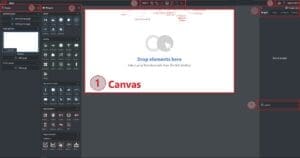
1. Canvas: The center section of the editor screen is the canvas. This is where you will drag and drop widgets to design your slide.
2. Top Toolbar: The toolbar directly above the canvas contains the Zoom, Load Content Snapshot, Undo/Redo, Toggle all Helper Lines, Reload Datasource, Save, and Preview in Browser buttons.
3. Top Right Tools: The Hotkeys, Help (opens this knowledge base), and Content Resolutions tools are in the top right corner.
4. Pages: On the left side of the screen are your Pages. This is where you can manage the individual pages in your Content. Learn more about the Pages Sidebar.
5. Layers: In the bottom right corner, you can manage the layers of the current slide. Learn more about Layers.
6. Widgets: In between Pages and Canvas is the Widgets toolbox. Learn more about Widgets.
7. Properties: The Properties sidebar is to the right of the canvas. You can manage your Widget, Page, Content, and Editor settings here. Learn more about the Properties Sidebar.