
How Can We Help?
-
Billing
- What Are Copier Meter Readings and Why Are They Important?
- How to Request a Copy of an Invoice or W-9, etc.
- What Information to Include with a Billing Question
- Why Your Invoice Amount Changed
- How to Update Your Billing Contact
- How to Update Your Billing Address
- Where to Send Payments
- Why Lease Billing and MCC Service Billing May Be Separate
- How to Apply Tax-Exempt Status
- How to Read and Report Your Copier Meter
-
Service
-
- How to Add Postage to Your Meter
- How to Update the Postage Rate on a Quadient iX Postage Meter
- What to Do If Your Postage Meter Won’t Connect
- What Happens When USPS Postal Rates Change?
- How to Prevent Mail Feeding Problems
- Why Envelopes Are Not Sealing Properly
- How to Clean or Maintain a Mailing Machine
- How to Replace Ink in a Postage Meter
-
- How to Set Up or Reset Voicemail
- How to Use the Webex App for Calls
- How to Add or Remove Users from Your Webex Phone System
- What to Do If Your Desk Phone Is Not Working
- How to Change Your Voicemail Greeting
- How to Forward Calls from Your Desk Phone
- How to Transfer a Call
- How to Place a Caller on Hold or Park a Call
-
- What Are Copier Meter Readings and Why Are They Important?
- Why Scan to Email Stopped Working
- What to Do When Your Printer Shows Offline
- How to Read and Report Your Copier Meter
- How to Order Toner or Supplies
- What to Check Before Placing a Copier Service Call
- How to Find Your Copier Serial Number or Equipment ID
- How to Clear a Paper Jam Safely
- Why Your Copier Says It’s Out of Paper When the Tray Is Full
- How to Fix Common Print Quality Problems
- Scan to Email Stopped Working
- How to Request Service from MCC
- What Information to Include in a Service Request
- How to Use the MCC Express Passport
- What is the Express Passport?
- How to Order Toner or Supplies
- How the MCC Service Process Works
- When to Request Service vs Contact Your Sales Rep
- How to Check the Status of a Service Request
- How Remote Support Works
- What to Do Before Moving MCC Equipment
-
-
Solutions
-
-
-
-
-
- Articles coming soon
-
- Articles coming soon
-
- Articles coming soon
-
- Articles coming soon
-
-
-
- Articles coming soon
-
- Articles coming soon
-
- Articles coming soon
-
- Articles coming soon
-
- Articles coming soon
-
- Articles coming soon
-
-
- Articles coming soon
-
- Articles coming soon
-
-
-
- Articles coming soon
-
- Articles coming soon
-
- Articles coming soon
-
Print
Updated
Content Analyzer
The Content Analyzer feature gives you insight into possible issues with your Content. This feature can help you optimize your content for the best performance on your device.
This feature is only available to Administrators, Owners, or Technicians and can be found by right-clicking on a Content or Loop.
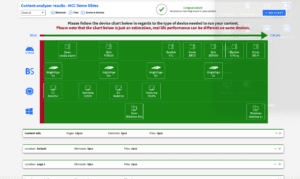
- Filter: Filter out errors, warnings, etc from the dropdown menu in the top left corner
- Mail Results: Email the results to the support content
- Chart: The large chart in the middle shows how well your device will play on your device. Green means the device should have no trouble playing the content on that device, and red means the device might have difficulty playing the content.
- Pages and Elements: Below the chart, you will find a section for each page.
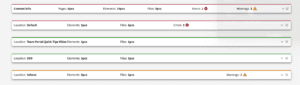
- The top line will show the detailed information for the full Content. Each individual page will be listed below that.
- Details:
- Page Name
- Elements: Shows the number of Elements on the Page
- Files: Shows the number of files used on the page
- Errors: Shows any errors on the page
- Warnings: Shows any Warnings on the page
- Color: The top of each details bar shows the color status
- Red: The page has errors
- Yellow: The page has Warnings
- Green: The page does not have any Warnings or Errors
- Expand Arrows: On the far right side of the bar, you will find two down arrows to expand the details for that page to get more information on the errors or warnings.
Posted
Updated
Table of Contents