
How Can We Help?
-
Billing
- What Are Copier Meter Readings and Why Are They Important?
- How to Request a Copy of an Invoice or W-9, etc.
- What Information to Include with a Billing Question
- Why Your Invoice Amount Changed
- How to Update Your Billing Contact
- How to Update Your Billing Address
- Where to Send Payments
- Why Lease Billing and MCC Service Billing May Be Separate
- How to Apply Tax-Exempt Status
- How to Read and Report Your Copier Meter
-
Service
-
- How to Add Postage to Your Meter
- How to Update the Postage Rate on a Quadient iX Postage Meter
- What to Do If Your Postage Meter Won’t Connect
- What Happens When USPS Postal Rates Change?
- How to Prevent Mail Feeding Problems
- Why Envelopes Are Not Sealing Properly
- How to Clean or Maintain a Mailing Machine
- How to Replace Ink in a Postage Meter
-
- How to Set Up or Reset Voicemail
- How to Use the Webex App for Calls
- How to Add or Remove Users from Your Webex Phone System
- What to Do If Your Desk Phone Is Not Working
- How to Change Your Voicemail Greeting
- How to Forward Calls from Your Desk Phone
- How to Transfer a Call
- How to Place a Caller on Hold or Park a Call
-
- What Are Copier Meter Readings and Why Are They Important?
- Why Scan to Email Stopped Working
- What to Do When Your Printer Shows Offline
- How to Read and Report Your Copier Meter
- How to Order Toner or Supplies
- What to Check Before Placing a Copier Service Call
- How to Find Your Copier Serial Number or Equipment ID
- How to Clear a Paper Jam Safely
- Why Your Copier Says It’s Out of Paper When the Tray Is Full
- How to Fix Common Print Quality Problems
- Scan to Email Stopped Working
- How to Request Service from MCC
- What Information to Include in a Service Request
- How to Use the MCC Express Passport
- What is the Express Passport?
- How to Order Toner or Supplies
- How the MCC Service Process Works
- When to Request Service vs Contact Your Sales Rep
- How to Check the Status of a Service Request
- How Remote Support Works
- What to Do Before Moving MCC Equipment
-
-
Solutions
-
-
-
-
-
- Articles coming soon
-
- Articles coming soon
-
- Articles coming soon
-
- Articles coming soon
-
-
-
- Articles coming soon
-
- Articles coming soon
-
- Articles coming soon
-
- Articles coming soon
-
- Articles coming soon
-
- Articles coming soon
-
-
- Articles coming soon
-
- Articles coming soon
-
-
-
- Articles coming soon
-
- Articles coming soon
-
- Articles coming soon
-
Print
Updated
File Manager
You can add, remove, or edit your images, videos, sounds, and custom font files in the File Manager.
You can access the File Manager from inside the Contents and Loop editors or by clicking on the File Manager icon at the top of the screen.

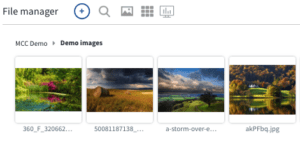
At the top of the File Manager screen, you will find icons to help you manage your files.
Add Options:

- Upload: Click to upload files from your computer
- Create Folder: Create a new folder
- Connect a Shared Folder: Click to connect a Google Drive or Microsoft OneDrive folder
- Create a Quick Filter Folder: Click to create a folder using specific filters to limit the files in the folder
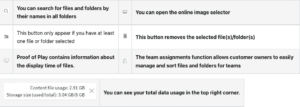
File Details:
In addition to the options at the top, you have options for each file you upload. Hovering over a file will reveal additional info.
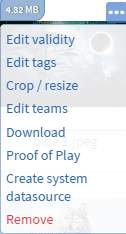
- Top Left: Size of the file
- Top Right: 3 dot menu button
- Edit Validity: Edit the validity of the file that you can use in the quick filter folder
- Edit Tags: Add or remove tags to make finding files easier
- Crop/Resize: Open the image editor to modify the file such as cropping, resizing or masking.
- Edit Teams: Add or remove the file from a Team that restricts access to specific people
- Download: Download the file
- Proof of Play: Opens the asset report about the file
- Create System Datasource: Create a file type system datasource that you can find in the Datasources menu in Settings.
- Remove: Delete the file from MCC Media
- File Name: Hover the mouse over the file name and then click the pencil icon to edit the file name.
Posted
Updated
Table of Contents