
How Can We Help?
-
Billing
- What Are Copier Meter Readings and Why Are They Important?
- How to Request a Copy of an Invoice or W-9, etc.
- What Information to Include with a Billing Question
- Why Your Invoice Amount Changed
- How to Update Your Billing Contact
- How to Update Your Billing Address
- Where to Send Payments
- Why Lease Billing and MCC Service Billing May Be Separate
- How to Apply Tax-Exempt Status
- How to Read and Report Your Copier Meter
-
Service
-
- How to Add Postage to Your Meter
- How to Update the Postage Rate on a Quadient iX Postage Meter
- What to Do If Your Postage Meter Won’t Connect
- What Happens When USPS Postal Rates Change?
- How to Prevent Mail Feeding Problems
- Why Envelopes Are Not Sealing Properly
- How to Clean or Maintain a Mailing Machine
- How to Replace Ink in a Postage Meter
-
- How to Set Up or Reset Voicemail
- How to Use the Webex App for Calls
- How to Add or Remove Users from Your Webex Phone System
- What to Do If Your Desk Phone Is Not Working
- How to Change Your Voicemail Greeting
- How to Forward Calls from Your Desk Phone
- How to Transfer a Call
- How to Place a Caller on Hold or Park a Call
-
- What Are Copier Meter Readings and Why Are They Important?
- Why Scan to Email Stopped Working
- What to Do When Your Printer Shows Offline
- How to Read and Report Your Copier Meter
- How to Order Toner or Supplies
- What to Check Before Placing a Copier Service Call
- How to Find Your Copier Serial Number or Equipment ID
- How to Clear a Paper Jam Safely
- Why Your Copier Says It’s Out of Paper When the Tray Is Full
- How to Fix Common Print Quality Problems
- Scan to Email Stopped Working
- How to Request Service from MCC
- What Information to Include in a Service Request
- How to Use the MCC Express Passport
- What is the Express Passport?
- How to Order Toner or Supplies
- How the MCC Service Process Works
- When to Request Service vs Contact Your Sales Rep
- How to Check the Status of a Service Request
- How Remote Support Works
- What to Do Before Moving MCC Equipment
-
-
Solutions
-
-
-
-
-
- Articles coming soon
-
- Articles coming soon
-
- Articles coming soon
-
- Articles coming soon
-
-
-
- Articles coming soon
-
- Articles coming soon
-
- Articles coming soon
-
- Articles coming soon
-
- Articles coming soon
-
- Articles coming soon
-
-
- Articles coming soon
-
- Articles coming soon
-
-
-
- Articles coming soon
-
- Articles coming soon
-
- Articles coming soon
-
Print
Updated
Video Widget
The Video widget lets you add videos to your content. Learn more about Supported File Types.
Properties > Widget > Main
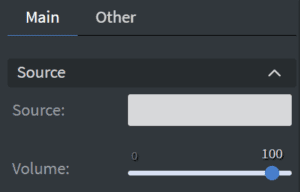
Source
Under the Source Menu, you can set the widget’s source video.
Size & Position
You can adjust the widget’s width, height, and position in the Size & Position menu.

Effects
You can set the widget’s rounding and opacity in the Effects Menu.
Image Properties Other
Properties > Widget > Other
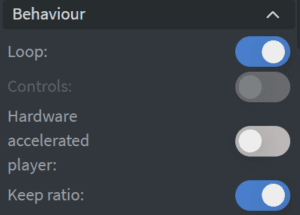
Behavior
Use the Behavior menu to determine how your video will be rendered.
- Loop: The option to continuously loop a video will be disabled if the element is set to jump to the end, has exit animation, or has enabled controls.
- Controls: Enable or disable video controls. Unavailable if the element is set to loop.
- Hardware Accelerated Player: Use the screen’s hardware GPU for improved performance instead of the HMTL player.
- Keep Ratio: Maintain the aspect ratio of the video source
Effects
Set the Shadow and Border options for the widget.
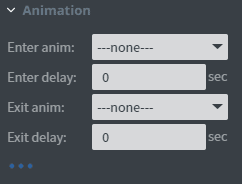
Animation
From the Animation Menu you can set the entrance and exit animation.
Bind to Data
Use the data picker tool to select the video to play based on the datasource.
Additional Properties
- Custom Margin
- Mask
- Flip
- Click Through
- Hide Based on
- BG Color
Posted
Updated
Table of Contents